> ## Documentation Index
> Fetch the complete documentation index at: https://docs.palagus.ai/llms.txt
> Use this file to discover all available pages before exploring further.
# Understanding Competitors
Competitors help you compare your brand with other companies, products, or solutions mentioned in AI-generated answers.
Once added to your project, competitors are automatically included in your analysis. This allows you to understand not only how your own brand performs, but also which alternatives receive attention across your personas, prompts, and AI tools.
## What is a Competitor?
A competitor is any brand you want to compare with your own brand.
This can include:
* Direct competitors offering a similar product
* Alternative solutions addressing the same problem
* Established brands in your market
* Emerging companies gaining visibility
* Products frequently mentioned alongside your brand
## Why Add Competitors?
Your own metrics become more meaningful when viewed in context.
For example, a high visibility score shows that your brand appears frequently. However, it does not tell you whether a competitor appears even more often. Adding competitors allows you to place your performance within the wider market.
Competitor tracking helps you:
* Compare brand visibility across AI-generated answers
* Understand how attention is distributed between brands
* Identify competitors receiving stronger recommendations
* Discover differences between personas and prompts
* Monitor changes in the competitive landscape
* Find topics where your competitors outperform your brand
* Recognize new brands appearing in relevant conversations
## How to Add a Competitor
Competitors are managed within your Palagus project. Each project has its unique separated set of competitors. Those are bound only to the project and can differ from project to project.
There are two possible ways to include competitors that you want to track.
### 1. Add competitors manually
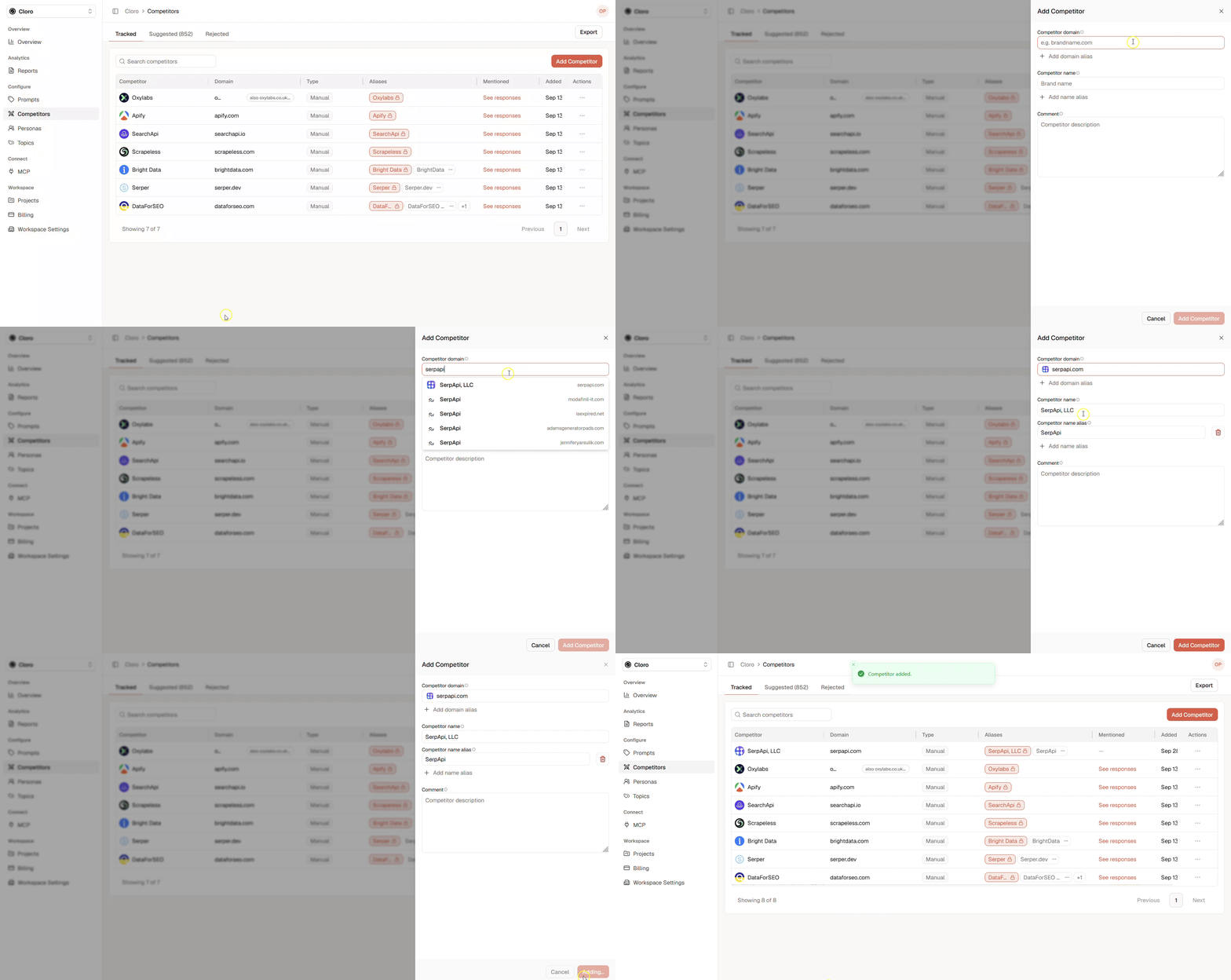 * Click **Add Competitor**
* Enter competitor domain
* Enter competitor name
* Enter aliases for competitor name and domain (optional)
* Write a comment (Optional)
* Click **Add Competitor** to save into competitor library
Each competitor created will be added to the tracked competitors. The tracking starts at the next run cycle.
### 2. Select suggested competitors
Select **Add Competitor** to create a new competitor.
We inspect in each cycle all coming responses for occurring competitors that haven't been listed in the project and register them in the suggested tab. We want to ensure that you see all competitors that you aren't aware of. We count each occurrence of each competitor and list all tracked aliases.
You can add information by adding aliases within the table. You can add more information by editing the competitor when a transition to the competitor tab has been realized.
All listed competitors in the suggested tab aren't actively tracked in each run. You can activate the tracking for the suggested competitors by accepting them. Accepting will transfer the competitor to the list in the competitor tab and you will track the competitor in each cycle.
## Choosing the Right Competitors
You do not need to add every company in your industry. Start with the competitors that are most relevant to the decisions you want to make.
A useful competitor set can include several categories:
**Direct Competitors**
These companies offer a similar product to a similar target audience. They are usually the most important brands for direct comparisons.
**Market Leaders**
Well-known brands may appear frequently because AI models associate them strongly with your category.
Tracking them helps you understand the visibility gap between your brand and established market leaders.
**Emerging Competitors**
New products may initially appear in only a small number of answers. Monitoring them can help you recognize changes in the competitive landscape early.
## Best Practices for Adding Competitors
### Use Consistent Naming
Create one competitor for each brand or product you want to analyze. Avoid adding the same competitor multiple times with slightly different names.
For example, do not create separate entries for:
* `Competitor`
* `Competitor.com`
* `Competitor GmbH`
Instead, use one primary competitor entry and add relevant alternative names where supported.
### Separate Brands When Necessary
If a company provides several independent products that compete in different categories, it may be more useful to track the relevant product rather than the parent company.
Choose the entity that users and AI assistants are most likely to mention in your specific market.
### Review Your Competitor List Regularly
Your competitive landscape can change over time.
Review your competitors when:
* New brands repeatedly appear in answers
* Your product enters a new market
* You introduce new personas or prompt clusters
* A competitor changes its name
* Two companies merge
* A product is discontinued
* A previously relevant competitor no longer appears
This documentation is built and hosted on [Mintlify](https://mintlify.com), a developer documentation platform.
* Click **Add Competitor**
* Enter competitor domain
* Enter competitor name
* Enter aliases for competitor name and domain (optional)
* Write a comment (Optional)
* Click **Add Competitor** to save into competitor library
Each competitor created will be added to the tracked competitors. The tracking starts at the next run cycle.
### 2. Select suggested competitors
Select **Add Competitor** to create a new competitor.
We inspect in each cycle all coming responses for occurring competitors that haven't been listed in the project and register them in the suggested tab. We want to ensure that you see all competitors that you aren't aware of. We count each occurrence of each competitor and list all tracked aliases.
You can add information by adding aliases within the table. You can add more information by editing the competitor when a transition to the competitor tab has been realized.
All listed competitors in the suggested tab aren't actively tracked in each run. You can activate the tracking for the suggested competitors by accepting them. Accepting will transfer the competitor to the list in the competitor tab and you will track the competitor in each cycle.
## Choosing the Right Competitors
You do not need to add every company in your industry. Start with the competitors that are most relevant to the decisions you want to make.
A useful competitor set can include several categories:
**Direct Competitors**
These companies offer a similar product to a similar target audience. They are usually the most important brands for direct comparisons.
**Market Leaders**
Well-known brands may appear frequently because AI models associate them strongly with your category.
Tracking them helps you understand the visibility gap between your brand and established market leaders.
**Emerging Competitors**
New products may initially appear in only a small number of answers. Monitoring them can help you recognize changes in the competitive landscape early.
## Best Practices for Adding Competitors
### Use Consistent Naming
Create one competitor for each brand or product you want to analyze. Avoid adding the same competitor multiple times with slightly different names.
For example, do not create separate entries for:
* `Competitor`
* `Competitor.com`
* `Competitor GmbH`
Instead, use one primary competitor entry and add relevant alternative names where supported.
### Separate Brands When Necessary
If a company provides several independent products that compete in different categories, it may be more useful to track the relevant product rather than the parent company.
Choose the entity that users and AI assistants are most likely to mention in your specific market.
### Review Your Competitor List Regularly
Your competitive landscape can change over time.
Review your competitors when:
* New brands repeatedly appear in answers
* Your product enters a new market
* You introduce new personas or prompt clusters
* A competitor changes its name
* Two companies merge
* A product is discontinued
* A previously relevant competitor no longer appears
This documentation is built and hosted on [Mintlify](https://mintlify.com), a developer documentation platform.